Dec
29
2025
29
2025
Using UI Slider to Create 5-Star Rating Element
 An article by

Steps
- Download or generate star-icon (for example: https://tools.unitycoder.com/StarIconGenerator/ )
- Set star image import settings to
- Texture Type: Sprite (2D and UI)
- Sprite Mode: Single
- Wrap Mode: Repeat
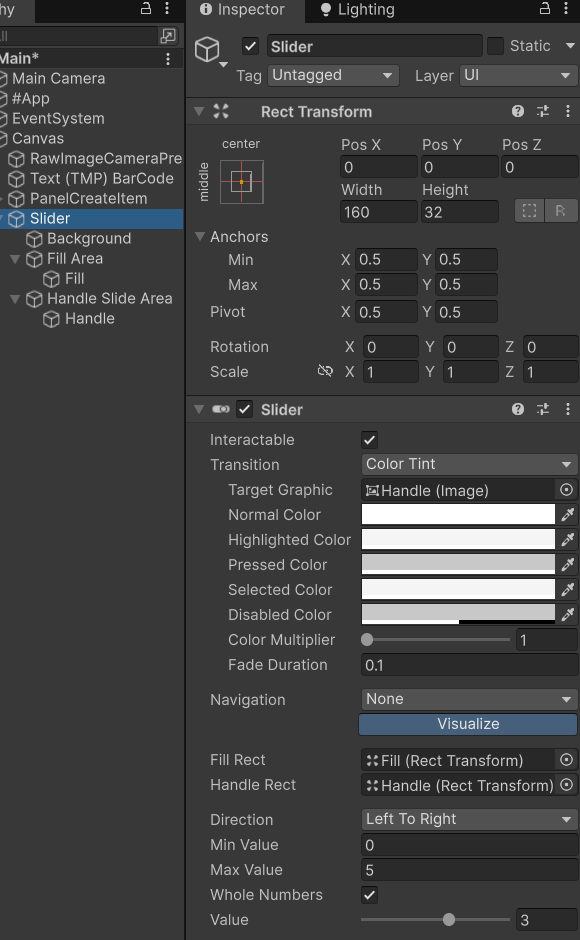
- Create UI/Slider to your Canvas (Adjust size if needed)
- Set Slider Height to: 32 (width is default 160)
- Set Max Value to 5
- Enable [x] Whole Numbers (if you want full stars filled)
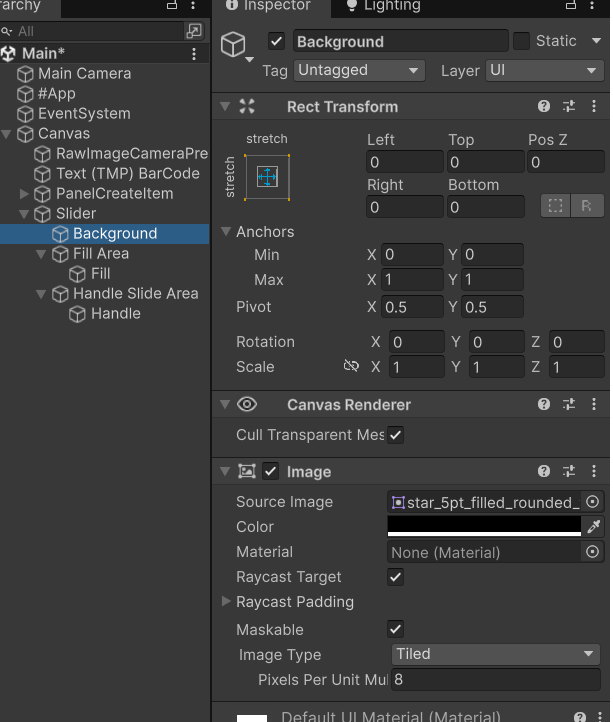
- Select Background gameobject inside your Slider/ hierarchy
- Set RectTransform mode to Stretch (so that it fills slider area)
- Assign Star Image to background Image, Set Image Type: Tiled, set Color to Black
- Adjust Pixels Per Unit Multiplier, for example: 2 (so that you can see 5 stars)
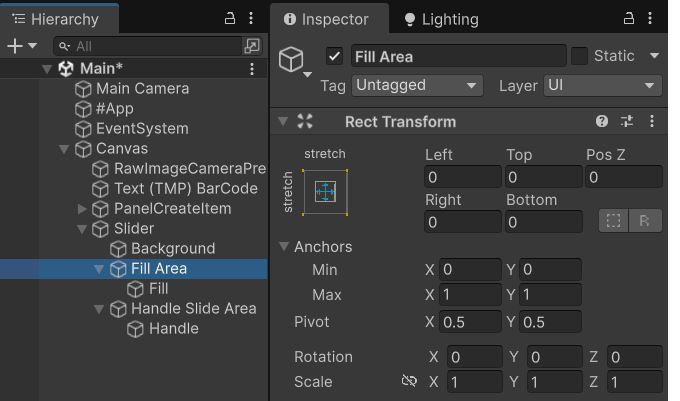
- Select Fill Area gameobject
- set RectTransform mode to Stretch and
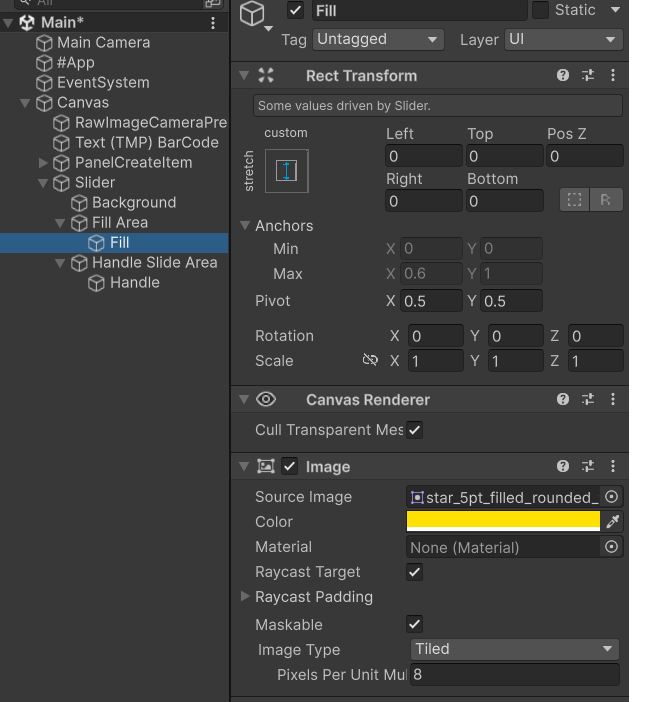
- Select Fill gameobject
- set RectTransform width to 0
- Assign Star image to Fill Image component, Set Image Type: Tiled
- Make Image color Yellow (if you want yellow stars)
- Adjust Pixels Per Unit Multiplier, for example: 2 (so that you can see 5 stars)
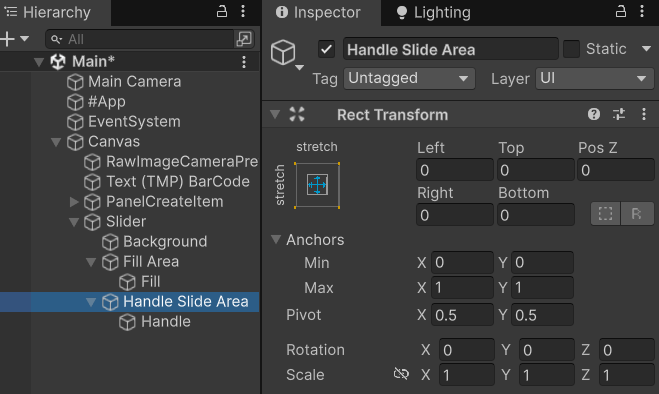
- Select Handle Slide Area gameobject
- set RectTransform Left and Right to 0 (to completely use slider area)
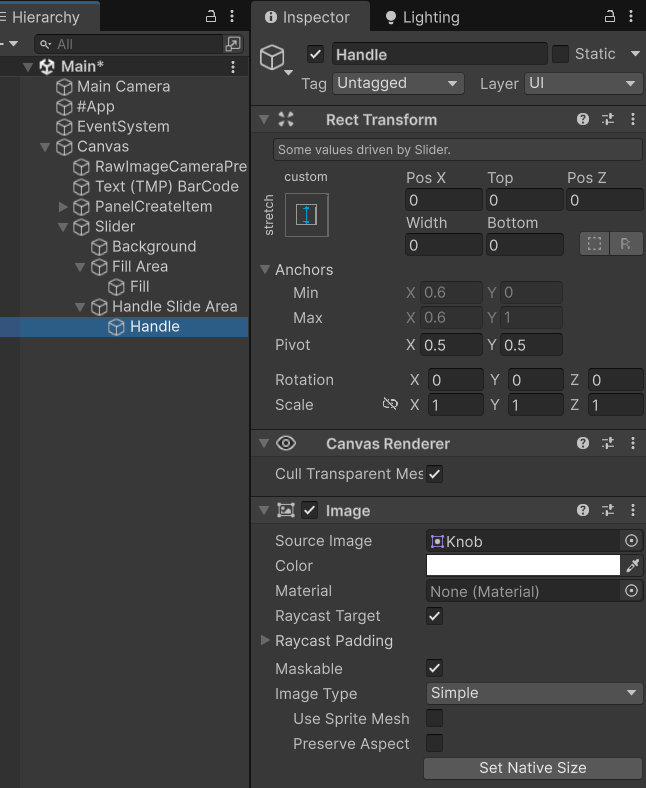
- Select Handle gameobject
- set RectTransform mode to Stretch Vertical and set pivot to 0.5
- Test the slider, it should look similar to the one in this gif above
Images

My start icon attached above ^
Did you enjoy this article? Share it!


Related Posts


Leave a comment
Recent posts
- PostBuild Script to Create Single exe Standalone File
- Game Loop Designer
- Favorites in PackageManager
- LudumDare59 : Signal
- Unity Editor: Tree Generator
- Leaf/Foliage Generator Tools (Runs in Browser)
- Testing Unity AI Beta
- Ways to Support UnityCoder Development
- Using UI Slider to Create 5-Star Rating Element
- Game Music Library For Unity (editor plugin)
- Fontastic : Easily Test Fonts in Unity Editor!
- GeoTiff Importer & Terrain Generator for Unity
Connect


Recent Comments
Support my work at Bags.fm:
Coin:
Coin:
CUgDSbRqFcAumDSAcdKDvuXsw26VdkJe8C8WGUQHBAGS
Subscribe to Blog via Email
Tag Cloud
2d
3D
AI
algorithm
android
asset
build
color
custom
demo
editor
effect
fake
free
game
generator
greasemonkey
indie
javascript
light
line
ludumdare
mesh
paint
particles
physics
plugin
procedural
proto
prototype
script
sea
shader
shadow
sprite
terrain
texture
tutorial
ui
unity
vertex
visibility
water
waves
webgl